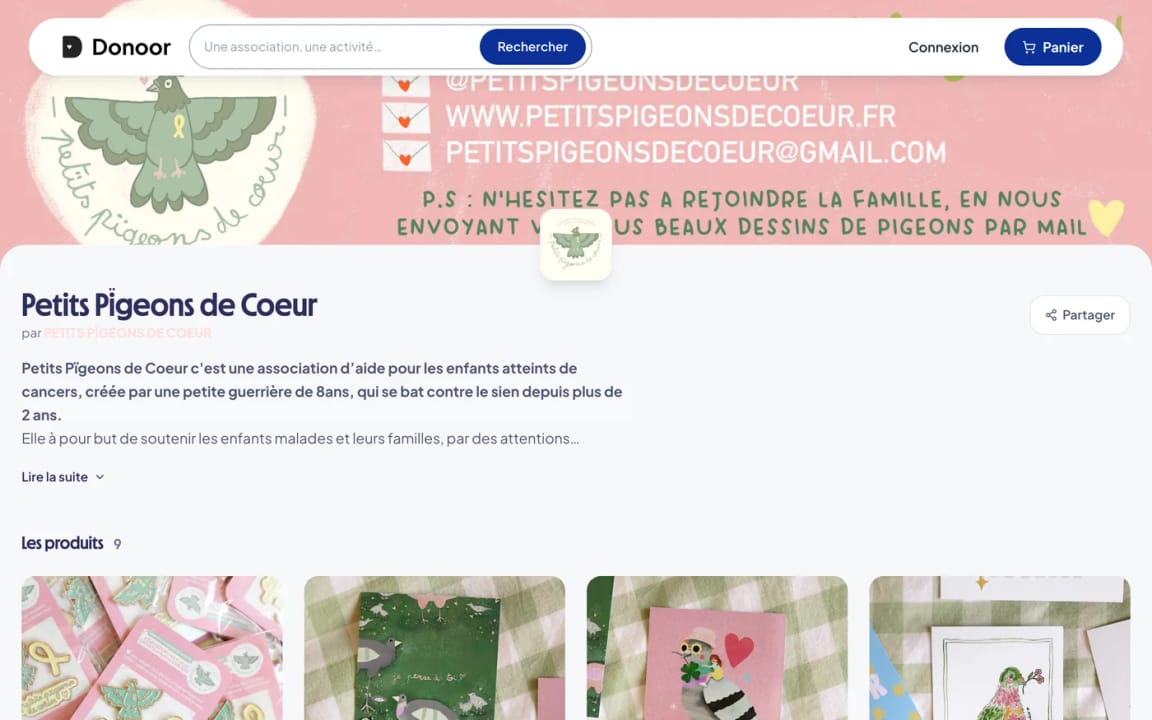
Shop
Opening your online shop
A self-paced course to open your organisation's shop and sell online, with no subscription fees.
- 4 modules · 8 min
- 1 practical guide to download
- 4 articles to go further
Introduction
Course content
Create your organisation's shop, add your products, offer delivery or collection, and manage your orders right through to handover.
- Create your shop and add your products, with their sizes and stock
- Offer delivery or collection on site
- Prepare, hand over and track your orders
Module 1
Creating your shop
A name, an address, and your shop is ready for its products.
Module content · 2 min
- The shop's name and public link
- The shop's sections
- Terms of sale and the mediator
- Going live
Content you may find useful
See the step-by-step guide (4 steps)
- 1
Create the shop
In the menu, click Shop, then Create a shop. Enter a Shop name: its public link will be donoor.org/boutique/your-shop. Click Continue.
- 2
Find your way around the sections
The shop has its own sections: Info, Products, Options, Delivery, Orders, Stats and Preview.
- 3
Enter the legal information
In Options, add your terms and conditions of sale and your consumer mediator's contact details. Without them, you can't go live.
- 4
Go live
Once your products and delivery methods are added, click Publish. If any information is missing, Donoor points it out with Complete it now.
Module 2
Adding your products
Photos, price, sizes, colours and stock: each product is ready to sell in a few minutes.
Module content · 2 min
- Photos, name, price and description
- Sizes and colours
- Managing stock and getting alerts
- Physical or digital products
Content you may find useful
See the step-by-step guide (5 steps)
- 1
Add a product
In Products, click Add a product. Add up to 6 photos (the first is the cover), the Product name and its price: Fixed price, Free price or Free.
- 2
Describe it
In Description, say what it is, what it's made of, its dimensions, and what the money from the sale will be used for.
- 3
Sizes and colours
In Options, tick I offer several sizes or colours: a table lets you set the quantity, price and reference for each combination.
- 4
Stock
Enter the Quantity in stock (blank = unlimited) and Notify me below to get an alert before you run out. Tick This item needs to be shipped if it goes by post.
- 5
Organise the shop
In Sections, sort your products (clothing, books, accessories…). In Advanced, choose a digital product if you are selling a file to download.
Tip
Photos taken in daylight, against a plain background, are all you need. Show the product being worn or used by your members.
Module 3
Delivery and collection on site
Offer postal delivery, collection from your premises, or both.
Module content · 2 min
- Adding a delivery method
- Collection on site, with opening hours
- Postage costs and free delivery
- The buyer's collection QR code
Content you may find useful
See the step-by-step guide (3 steps)
- 1
Add a method
In Delivery, click Add a delivery method and choose Delivery or Collection on site.
- 2
Set up delivery
Give it a name (“Colissimo”…), the Fee (€) and, if you like, Free from (€) to offer free postage above a certain amount.
- 3
Set up collection
Enter the Collection point and the Hours and instructions. The buyer receives a collection QR code to show.
Module 4
Managing your orders
From order to handover, every step is tracked, and the buyer is kept informed.
Module content · 2 min
- The purchase journey in your shop
- Preparing, shipping or handing over an order
- Scanning collection QR codes
- Writing to your buyers
Content you may find useful
See the step-by-step guide (4 steps)
- 1
Receive the order
The buyer adds products to their basket, chooses delivery or collection and pays. They receive an “Order confirmed” email, and the order arrives in Orders, under the To process filter.
- 2
Move the order forward
Click Manage, then Mark as being prepared, Mark ready for collection, Mark as shipped or Mark as handed over. Tick Notify the buyer to let them know by email.
- 3
Scan collections
On collection day, click Scan in your shop, then Open the scanner, from your phone's browser. Green: the order is handed over. Orange: it has already been collected. Red: unknown QR code or unpaid order.
- 4
Write to your buyers
In Orders, Write sends a message to All buyers, to Orders to prepare, to orders Awaiting collection or to Sent orders.
Questions? We have answers
Is an organisation allowed to sell products?
Yes, an organisation can sell products to fund its work. Above a certain volume, in France these sales may be subject to commercial taxes: check with your local tax office if your shop grows.
Why does Donoor ask for terms and conditions of sale?
Because French law requires them for any online sale, along with the contact details of a consumer mediator. They protect your buyers and your organisation.
Can we sell digital products?
Yes. Choose “Digital product” in the product's advanced settings and attach the file (50 MB maximum): the buyer downloads it after paying.
How much does the Donoor shop cost?
Nothing for your organisation: €0 subscription and 0% commission. Only bank fees apply to each sale.
Got a question? Let's talk.
30 minutes on a video call to discover Donoor, ask your questions and set up your organisation together.
Free, no commitment