Team
Managing your team
The course for getting your whole team working on Donoor, giving each person exactly the access they need.
- 3 modules · 5 min
- 1 practical guide to download
- 4 articles to go further
Introduction
Course content
Invite your volunteers and administrators onto Donoor, each with their own login. Choose what each person can see and do, page by page.
- Invite a member and help them join the organisation
- Choose their role and adjust their permissions one by one
- Know what a member can see and what stays closed to them
Module 1
Inviting a member
An email address and a role: the person receives their invitation and joins the organisation in a few minutes.
Module content · 1 min
- Sending the invitation
- The email the person receives
- Creating their account and accepting
- Pending invitations
Content you may find useful
See the step-by-step guide (5 steps)
- 1
Open the team
Go to Settings › Team and click Invite a member.
- 2
Send the invitation
Enter the person's email address, choose their role (Administrator, Volunteer or Member) and click Send the invitation.
- 3
The person receives an email
They click Accept the invitation. If they don't have an account yet, they create one in a few seconds: their email address is already filled in.
- 4
They accept and join the organisation
One last click on Accept the invitation, and they find your organisation in their dashboard, with the role you chose.
- 5
Keep track of invitations
Until the person has accepted, the invitation appears under Pending invitations. It is valid for 7 days.
Tip
There is no limit on the number of members: give each volunteer their own login rather than sharing a password.
Module 2
Roles, permissions and what a member sees
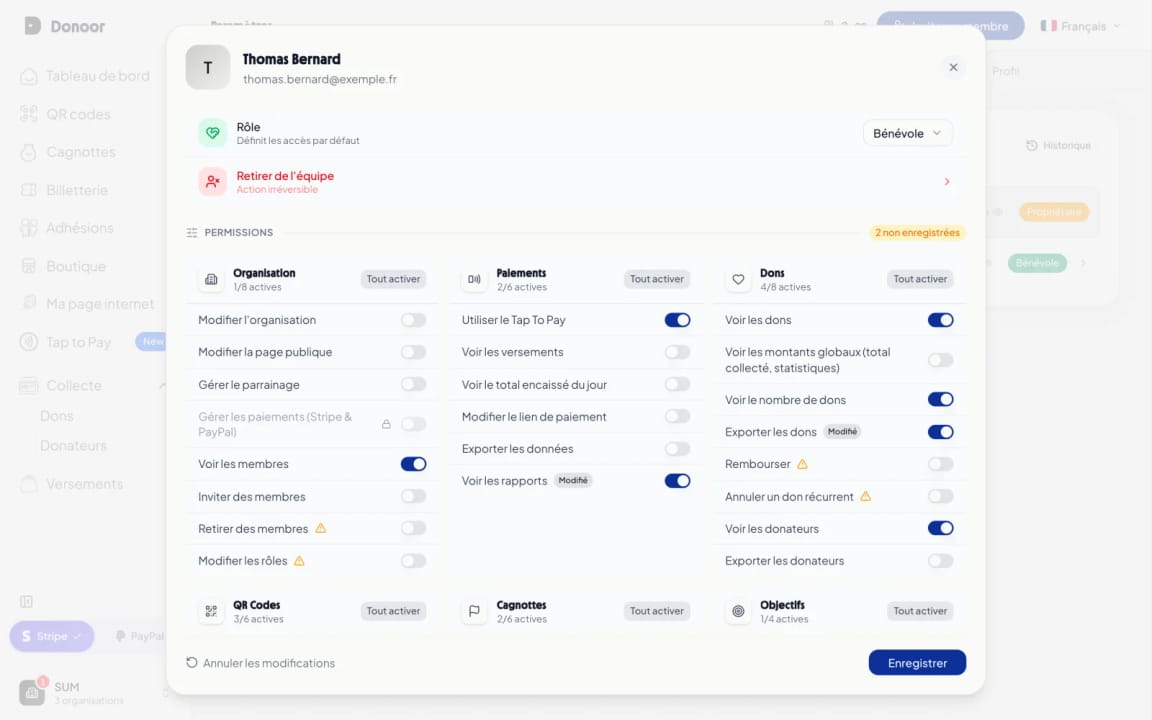
The role gives default permissions, which you adjust one by one. Then we step into the member's shoes: what they see, on the dashboard and in the app.
Module content · 2 min
- The three roles
- Adjusting a specific permission
- Hidden amounts
- A closed page
Content you may find useful
See the step-by-step guide (7 steps)
- 1
The three roles
Administrator manages the organisation and the team. Volunteer sees donations and helps day to day (QR codes, tickets, Tap to Pay), without seeing amounts or payouts. Member has basic access.
- 2
Open the member's profile
In Settings › Team, click the member: their role and all their permissions are displayed, grouped by category (organisation, payments, donations, fundraisers, ticketing…).
- 3
Adjust their permissions
Turn each permission on or off, or use Turn all on for a category. Every permission that differs from the role is marked Changed.
- 4
Save
Click Save: the new permissions apply straight away. Discard changes goes back to the previous permissions.
- 5
Their dashboard
They find the organisation in their own dashboard. Without the permission to see amounts, these are replaced by •••• and marked Restricted access.
- 6
Pages they can open
A volunteer can, for example, open Fundraising › Donations: they see the list of donations and can export it if you have given them that permission.
- 7
Closed pages
On a page they don't have access to, such as Payouts, they see Access denied and know they need to ask a leader for access.
Tip
Permissions marked with a triangle (refunding, removing members, changing roles) are sensitive: keep them for people you trust.
Module 3
Following and evolving your team
See who does what, change a role or remove a member when they leave the organisation.
Module content · 2 min
- The team history
- Changing a role
- Removing a member
- Resending or cancelling an invitation
Content you may find useful
See the step-by-step guide (4 steps)
- 1
The history
The History button on the Team page lists each member's actions. A member's profile also shows when they last logged in.
- 2
Changing a role
Open the member's profile and choose another role: their default permissions change with it.
- 3
Removing a member
In their profile, Remove from the team immediately closes their access to the organisation. Their past actions remain in the history.
- 4
Pending invitations
An invitation didn't arrive? Resend it. No longer needed? Cancel it from Pending invitations.
Tip
Review your team whenever your board changes: remove former members and give permissions to the new ones.
Questions? We have answers
How many members can I invite?
As many as you like: there is no limit on the number of members and the team feature is free. Each person has their own login, with their own permissions.
Does the invited person need to have a Donoor account already?
No. By clicking the invitation, they create their account in a few seconds, with their email address already filled in, then accept the invitation. If they already have an account, they simply log in.
Can a volunteer see how much the organisation has raised?
Not by default: the Volunteer role hides amounts and payouts. You can open up this information to them by turning on the matching permissions in their profile.
The invitation hasn't arrived. What should I do?
Ask the person to check their spam folder, then resend the invitation from Pending invitations. An invitation is valid for 7 days.
What happens when I remove a member?
They immediately lose access to the organisation. Their Donoor account remains theirs, and their past actions remain visible in the team history.
Got a question? Let's talk.
30 minutes on a video call to discover Donoor, ask your questions and set up your organisation together.
Free, no commitment