Before you start
Getting started on Donoor
A self-paced course to open your organisation's account and get ready to receive your first donations.
- 7 modules · 9 min
- 1 practical guide to download
- 12 articles to go further
Introduction
Course content
From sign-up to your first payout: create your organisation's account, connect Stripe or PayPal and find your way around the dashboard.
- Create your organisation's account and complete its profile
- Connect Stripe or PayPal to accept donations and receive your payouts
- Find your way around: dashboard, payouts, team and notifications
Module 1
Create your organisation's account
In two steps, your organisation has its own Donoor space, free and with no commitment.
- 1
Start signing up
Click Register my organisation, at the top right of the donoor.org website.
- 2
Find your organisation
In Tell us about your organisation, type its name, its RNA number or its SIRET number (French registration numbers), then pick it from the list. Check the Organisation found screen and click Continue. Not listed? Click I can't find my organisation to enter its details yourself.
- 3
Create your login
Enter the organisation's name, your email and a password of at least 8 characters, with a lowercase letter, an uppercase letter and a number. Accept the terms, then click Create my account. You can also use Continue with Google or Continue with Apple.
- 4
Confirm your email address
Open the email you have just received and click the confirmation link. Nothing arrived? The banner on the dashboard offers Resend the confirmation email.
- 5
Complete your profile
Hover over the percentage at the top of the dashboard: the Account completion window lists what is left to do (organisation details, public page, first fundraiser, first QR code, payment method). Each line takes you to the right place.
Tip
Enter your organisation's RNA or SIRET number in Settings › Organisation › Tax information: it is used to verify your organisation, and you will need it to activate tax receipts.
Module content · 2 min
- Find your organisation by its name, RNA or SIRET number
- Create your login: email and password, or Google and Apple
- Confirm your email address
- Follow the “Account completion” gauge
Content you may find useful
Module 2
Connect Stripe to accept donations
Stripe processes payments by card, Apple Pay and Google Pay, then pays the money into the organisation's bank account.
- 1
Open the payments page
On the home page, click Connect Stripe in the “Activate Stripe or PayPal to receive your donations” card. You land in Settings › Fundraising process, where you click Connect Stripe again.
- 2
Introduce the legal representative
Donoor asks you a few questions to prepare your application: who represents the organisation (first name, last name, role, email), then their personal details (date of birth, home address, mobile number). These are passed directly to Stripe.
- 3
Enter the bank account
If Donoor asks, find the organisation by its name, RNA or SIRET number. Then enter the IBAN of the organisation's bank account, held in its name, and click Finish.
- 4
Finish with Stripe
Stripe's secure form opens in the page: complete what it asks for, usually a code sent by text message and acceptance of the terms.
- 5
Wait for verification
The badge changes to Verification: Stripe reviews the application and lets you know by email. Once approved, the page shows Payments and payouts active: your pages accept card, Apple Pay and Google Pay.
Tip
Stripe needs one more piece of information? The Resume setup button takes you straight to what is left to complete.
Module content · 1 min
- What Stripe gives you: secure payments and direct payouts
- The Donoor form that pre-fills your Stripe application
- Stripe verification, built into the dashboard
- Tracking your account status until “Payments and payouts active”
Module 3
Connect PayPal
Add PayPal so your donors can also pay with their PayPal account.
- 1
Start the connection
In Settings › Fundraising process, click Connect PayPal. A PayPal window opens: if your browser blocks it, allow pop-up windows for Donoor.
- 2
Connect your account
Log in to the organisation's PayPal Business account, or create one, then confirm the permission given to Donoor.
- 3
Come back to Donoor
Return to Donoor: the connection is checked automatically. Depending on PayPal, verification takes anywhere from a few minutes to 2 or 3 working days; Refresh status updates the page.
- 4
Schedule your transfers
PayPal donations stay in your PayPal balance, because PayPal does not transfer the money on its own. Click Set up automatic transfers to schedule them from your PayPal account.
- 5
Choose the featured method
If both Stripe and PayPal are active, the Featured payment method section lets you choose which one your donors see first.
Tip
On a new PayPal account, PayPal may hold your first payments for up to 21 days. This is normal: the money then arrives in your balance.
Module content · 1 min
- Linking the organisation's PayPal Business account
- Following PayPal's verification
- Scheduling transfers from PayPal to your bank
- Choosing the featured payment method
Content you may find useful
Module 4
Getting to grips with the dashboard
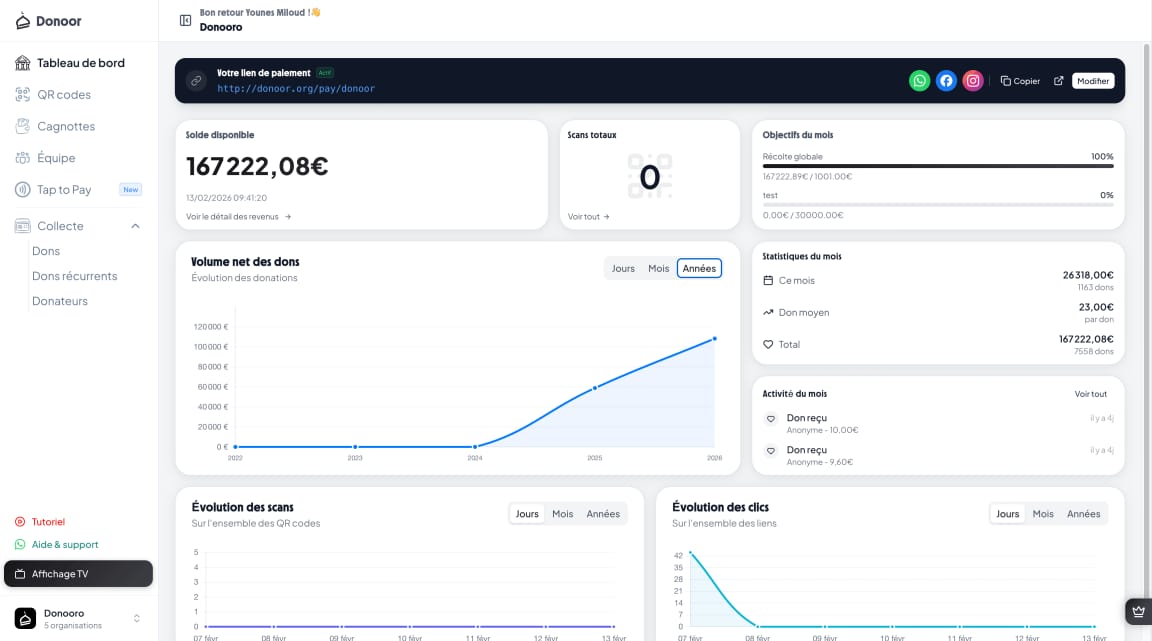
Everything that matters for your fundraising, gathered on the home screen.
- 1
Find your way around the menu
The left-hand menu gives access to each tool: QR codes, Fundraisers, Ticketing, Memberships, Shop, My public page and Tap to Pay, then Fundraising (donations and donors) and Payouts.
- 2
Read your figures
The Total raised card shows the money received since the start; See revenue details opens the list of donations. The Pending payouts card shows what will soon reach your account.
- 3
Follow the trend
The Net donation volume chart can be shown by Days, Months or Years. The Statistics section gives your average donation and the share of fees covered by your donors.
- 4
Share your payment link
The Payment link card, at the top of the home page, lets you Copy your link, Embed it on a website or Edit it.
- 5
Find the settings
Click the organisation's name at the bottom of the menu, then Settings: organisation, fundraising process, tax receipts, notifications, team…
Module content · 1 min
- The menu: QR codes, fundraisers, ticketing, memberships, shop, website
- Total raised and pending payouts
- How your donations evolve by day, month or year
- Where to find the organisation's settings
Content you may find useful
Module 5
Tracking your payouts
Know at any time when the money from your donations reaches the organisation's account.
- 1
Open the page
Click Payouts in the menu.
- 2
Read the three totals
Total paid out: money that has already reached your account. Transfer in progress: transfers on their way, with their arrival date. Upcoming: donations received that will be paid out soon.
- 3
Find a payout
Choose Stripe only or PayPal only, and a month in the tabs: the history is sorted by day.
- 4
Understand the timescales
Stripe payouts are automatic: allow up to 7 days between a donation and its arrival in your account. PayPal donations, on the other hand, stay in your PayPal balance until you transfer them.
Tip
This page is only visible to authorised members: by default, the owner and administrators.
Module content · 1 min
- Total paid out, in transit and upcoming
- Filtering by Stripe, by PayPal and by month
- Payout timescales
- The special case of PayPal
Content you may find useful
Module 6
Inviting your team
Bring your volunteers onto Donoor, each with the right permissions.
Module content · 2 min
- Inviting a member by email
- The roles: administrator, volunteer, member
- Adjusting permissions one by one
- What the invited person sees
Content you may find useful
See the step-by-step guide (5 steps)
- 1
Open the team
Go to Settings › Team, then click Invite a member.
- 2
Send the invitation
Enter the person's email address, choose their role and click Send the invitation. The invitation is valid for 7 days.
- 3
Choose the right role
Administrator manages the organisation and the team. Volunteer sees donations, creates QR codes, validates tickets and takes payments with Tap to Pay, without seeing amounts or payouts. Member has basic access.
- 4
Adjust permissions
Click a member to tick or untick their permissions, category by category (payments, donations, fundraisers, ticketing…), or to remove them from the team.
- 5
On the invitee's side
The person receives an email, clicks Accept the invitation (or creates their account) and finds the organisation in their dashboard.
Tip
There is no limit on the number of members: give each volunteer their own login rather than sharing a password.
Module 7
Choosing your notifications
Be notified of every donation, ticket or membership, and only of what interests you.
- 1
Open notifications
Go to Settings › Notifications.
- 2
Set each category
Each category (Donations, Events, Memberships, Tax receipts…) has an Email switch and a Push switch for the mobile app. Open it to set each alert: new donation received, large donation, fundraising milestone reached, ticket sold…
- 3
Save
Click Save in the bar that appears at the bottom of the screen.
Tip
Alerts marked with a padlock (payments activated, payouts suspended, disputes…) are always sent: they need you to take action.
Module content · 1 min
- The categories: donations, events, memberships, tax receipts…
- By email or in the Donoor mobile app
- Important alerts, always sent
Content you may find useful
Questions? We have answers
Is Donoor really free?
Yes. Donoor is 100% free for organisations: no subscription and 0% commission on your donations. Only Stripe or PayPal bank fees apply, and your donors can choose to cover them.
Do I have to choose between Stripe and PayPal?
No. One is enough to receive donations, and you can activate both: your donors then choose how to pay, and you decide which one is featured.
Who receives the money from donations?
Your organisation, directly. Donations go to the organisation's Stripe or PayPal account, then to its bank account. Donoor never holds your money.
How long does it take to be ready?
Signing up takes a few minutes, and so does connecting Stripe or PayPal. Verification by the provider can then take anywhere from a few minutes to a few days: you can prepare your fundraisers and QR codes in the meantime.
Got a question? Let's talk.
30 minutes on a video call to discover Donoor, ask your questions and set up your organisation together.
Free, no commitment