Payment link
Collecting donations with a payment link
A self-paced course to create your organisation's donation page and receive donations all year round.
- 9 modules · 15 min
- 2 practical guides to download
- 14 articles to go further
Introduction
Course content
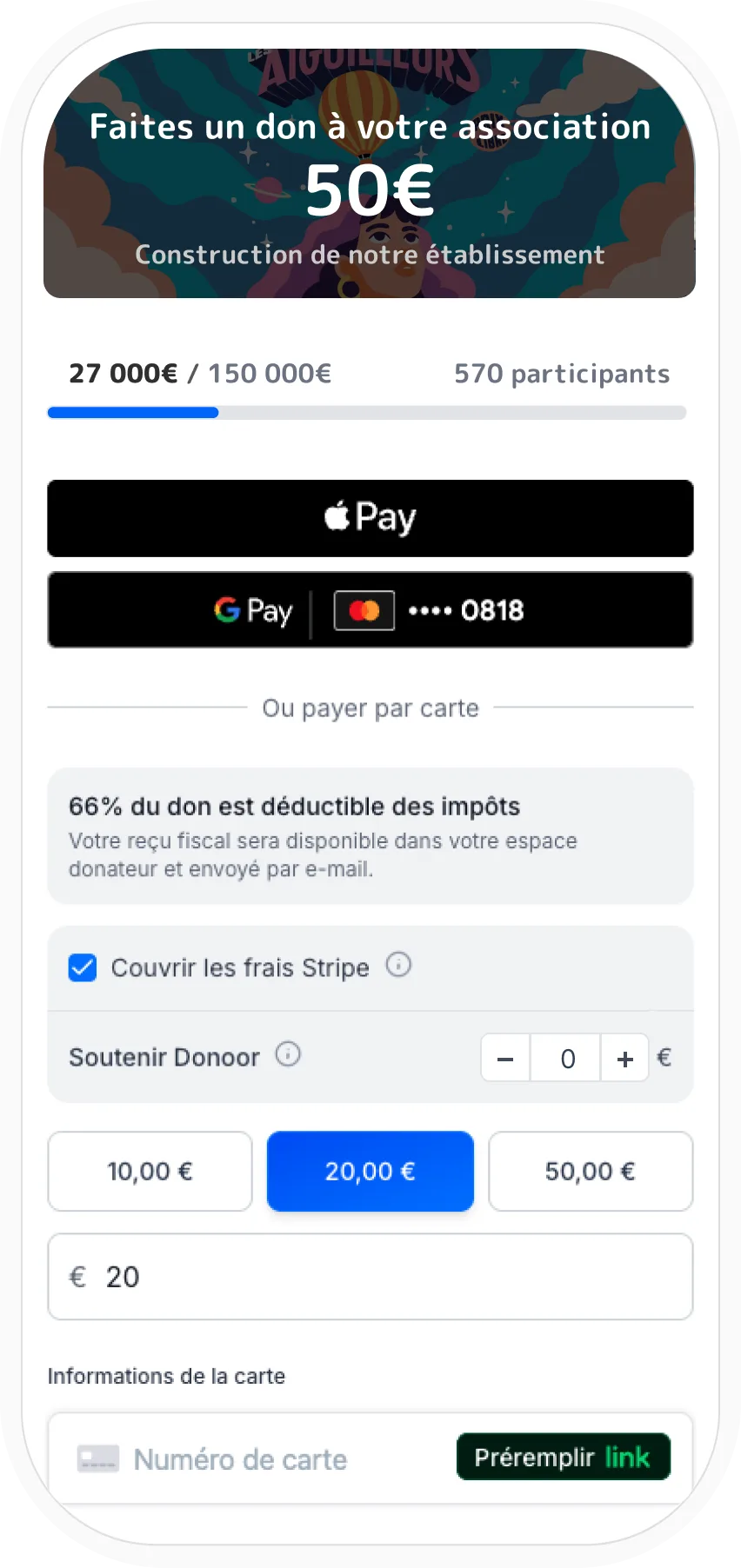
Your payment link is your organisation's donation page: share it everywhere, on WhatsApp, social media, by email or on your website. One-off or monthly donations, by card, Apple Pay, Google Pay and PayPal.
- Create and customise your payment link, with the live preview
- Share it everywhere and add it to your website
- Follow your donations and donors in real time
Module 1
Your payment link
Your payment link is your organisation's permanent donation page: it's ready as soon as you sign up, to share everywhere.
Module content · 2 min
- Finding your link on the dashboard home page
- Copying it or sharing it on WhatsApp, Facebook and Instagram
- Opening the customisation, with the live preview
- Choosing your link's address
Content you may find useful
See the step-by-step guide (5 steps)
- 1
Find your link
On the dashboard home page, the Payment link card is right at the top. Your link is ready: it's your organisation's permanent donation page.
- 2
Share it
Copy it in one click, or use Share on WhatsApp, Share on Facebook or Copy for Instagram, to paste into your story or bio.
- 3
Open the customisation
Click Edit (or Set up the first time). The settings open on the left and the Live preview of your page on the right: every change shows up there straight away.
- 4
Choose the address
In Your payment link, customise the end of the address: lowercase letters, numbers and hyphens. Your page will be at donoor.org/pay/your-organisation.
- 5
Mobile or desktop
Above the preview, switch from Mobile to Desktop to see your page just as your donors will see it on each screen.
Tip
Change the address before you share your link: once it's out there, keep it so you don't break the links you've already sent.
Module 2
Customising your donation page
A banner, a title, a few sentences and well-chosen amounts: your page makes people want to give.
Module content · 2 min
- Adding a banner
- Writing the title and description
- Choosing the suggested amounts and the default amount
- Checking how it looks on mobile and desktop
Content you may find useful
See the step-by-step guide (5 steps)
- 1
Open Customisation
In your link's editor, open the Customisation section: banner, title, description and amounts.
- 2
The title and description
Explain in a few sentences what you do and what each donation makes possible. The text appears straight away in the Live preview.
- 3
The banner
Add a Banner: a photo of your work, your volunteers or your premises. It's the first thing donors see.
- 4
The suggested amounts
Offer up to 6 Suggested amounts. Click an amount to make it the default: it will already be selected when the page opens.
- 5
Check and save
Switch the preview to Desktop to check how it looks on a large screen, then click Save.
Tip
Set the default to an amount slightly above your average donation: many donors keep the amount suggested.
Module 3
Colours and buttons
Give your page your organisation's colours: your donors instantly recognise who they're supporting.
Module content · 1 min
- The primary colour and the background colour
- The button style: Rounded, Pill or Square
- The payment button text
Content you may find useful
See the step-by-step guide (4 steps)
- 1
Open Appearance
In your link's editor, open the Appearance section.
- 2
Choose your colours
The Primary colour is used for your buttons and your top banner; the Background colour covers the rest of the page. Use the colours from your logo.
- 3
The button style
In Button style, choose Rounded, Pill or Square: the preview changes straight away.
- 4
The button text
In Payment button text, write a phrase that sounds like you, for example “I support the neighbourhood”. Check it on desktop, then click Save.
Module 4
Impact amounts
Show what each donation makes possible: “€25 = a food parcel”. Donors know exactly what their money is used for.
Module content · 1 min
- Adding up to 4 impact cards
- An amount, a title, a description and an image
- What donors see when they choose an amount
Content you may find useful
See the step-by-step guide (4 steps)
- 1
Open Impact amounts
In your link's editor, open the Impact amounts section, then click Add an impact amount.
- 2
Fill in the card
Enter an amount, a title and a short description, for example “€25 — A food parcel for a family”. You can add up to 4 cards.
- 3
Add an image
A photo makes the donation real: a meal served, a lesson given, premises renovated.
- 4
Check and save
In the preview, choose an amount: the matching card appears, along with the next level. Click Save.
Tip
Match your impact cards to your suggested amounts: each button then tells the story of what it makes possible.
Module 5
Fundraising goal and options
A goal with its gauge, monthly giving, covered fees, and only the information you need: then your page is ready.
Module content · 2 min
- Setting a goal with the progress bar
- Recurring donations and the “Cover the fees” option
- The tax deduction
- The information you ask donors for
- Your published page, on phone and desktop
Content you may find useful
See the step-by-step guide (5 steps)
- 1
Set a goal
In Fundraising goal, enter the Target amount and switch on Show progress bar: a gauge that moves makes people want to take part. The goal is optional.
- 2
Set the options
In Options, keep Recurring donations and Cover the fees switched on: 4 out of 5 donors cover the fees so your organisation receives the full donation.
- 3
The tax deduction
Tax deduction displays the “66% tax-deductible” banner. You first need to activate your organisation's tax receipt service.
- 4
The information requested
Choose what you ask donors for: full name, email, message. Keep the email: without it, there's no way to send a tax receipt.
- 5
Save and admire
Click Save: your donation page is updated straight away, on phone and desktop alike.
Module 6
The donor's payment journey
Put yourself in your donor's shoes: in a few seconds, the donation is made and the receipt is sent.
Module content · 2 min
- Choosing an amount, as a one-time or monthly donation
- Covering the fees and the optional contribution to Donoor
- Paying by card, Apple Pay, Google Pay or PayPal
- The thank-you page and the emails received
Content you may find useful
See the step-by-step guide (4 steps)
- 1
The amount
The donor picks one of your amounts or enters their own with Other amount (€1 minimum). They choose One-time donation or Recurring: monthly by default, weekly or yearly.
- 2
The fees
The Cover the fees box is ticked by default: your organisation then receives 100% of the donation. The donor can also leave an optional contribution to Donoor (adjustable, €0 possible), which keeps the platform free.
- 3
The payment
They pay in one tap with Apple Pay or Google Pay, by bank card or with PayPal, then enter their name and email. They can give anonymously and leave a message.
- 4
The thank-you
The Thank you for your donation! page sums up their donation. They immediately receive a payment confirmation by email, plus their tax receipt if your organisation issues them.
Tip
Make a small donation on your own page before sharing it: you will see exactly what your donors experience.
Module 7
Adding donations to your website
Your visitors give without leaving your website, thanks to the embeddable donation widget.
Module content · 2 min
- The formats: embedded, pop-up, floating or card
- Choosing what is displayed and the colours
- Authorising your website and copying the code
- Guides for WordPress, Wix, Shopify, Webflow…
Content you may find useful
See the step-by-step guide (4 steps)
- 1
Open the widget
On the Payment link card on the home page, click Embed. You can also embed a QR code or a fundraiser with Embed on my website.
- 2
Choose the format
Embedded appears within the page, Pop-up opens when a button is clicked, Floating follows visitors as they scroll, and Card presents a fundraiser with its donate button.
- 3
Set the appearance
Choose the width, what is displayed (logo, gauge, cover the fees, tax receipt mention, recurring donation…) and your colours. Left blank, they use those of your payment link.
- 4
Install it
In Allowed domains, add your website's address, then choose your platform (HTML, WordPress, Wix, Shopify, Webflow, Squarespace…). Click Copy and follow the 3-step guide.
Module 8
Tracking your donations and donors
Find every donation and every donor, and export everything for your accounts.
Module content · 2 min
- The list of donations and its filters
- Donation details and refunds
- Stopping a monthly donation
- The list of donors and the Excel export
See the step-by-step guide (6 steps)
- 1
Open the list of donations
In the menu, click Fundraising › Donations. Filter by status, by type (recurring or one-off), by source (fundraisers, QR codes, payment link…) or by period.
- 2
View a donation
Click a row: the Donation details show the amount collected, the net amount received, the donor's message, where it came from and the payment method.
- 3
Refund if needed
In Actions, choose Refund: the full amount or a partial amount, with a reason if you wish. The donor is notified by email.
- 4
Manage monthly donations
Filter on Recurring to see your monthly donors. Cancel the subscription stops future payments, without refunding previous ones.
- 5
Export
Click Export to download the year's donations as Excel, CSV or PDF. The Fundraising › Donors page lists each donor with their total and can be exported too.
- 6
From your phone
In the Donoor app, tap Transactions on the home screen: every donation, its details and the Refund button, just like on the dashboard.
Module 9
The donor area
Your donors find their donations and receipts on their own: fewer questions for you.
Module content · 1 min
- Password-free login, via an email link
- Donation history and tax receipts
- Stopping a monthly donation on their own
- Tickets and memberships in the same place
Content you may find useful
See the step-by-step guide (4 steps)
- 1
Logging in
The donor clicks Log in on a donation page, enters their email and receives a login link valid for 15 minutes. Their area is created automatically with their first donation.
- 2
Their donations and receipts
In My donations, they find their full history and download their tax receipts as PDFs. If their address is missing, the Complete my profile banner prompts them to add it.
- 3
Their monthly donation
In the Active subscriptions tab, they can stop their monthly donation themselves with Cancel.
- 4
Everything in one place
Their tickets (Events), membership cards (Memberships) and orders (Shop) are also waiting for them in their area.
Questions? We have answers
What is a payment link?
It's the address of your organisation's donation page, for example donoor.org/pay/your-organisation. Your donors open it from a message, a social network or your website, and give in a few seconds.
Can my donors give every month?
Yes. Monthly giving is offered by default on your payment link. Donors can also choose a weekly or yearly donation, and stop it themselves from their donor space.
How much does fundraising with Donoor cost?
Nothing for your organisation: €0 subscription and 0% commission. Only Stripe or PayPal bank fees apply, and your donors cover them 4 times out of 5.
Why collect my donations with Donoor?
Because everything is in one place, and free: a payment link ready to share, monthly giving, Apple Pay and Google Pay, tax receipts sent automatically and real-time donor tracking. And the money goes straight to your organisation's bank account.
Got a question? Let's talk.
30 minutes on a video call to discover Donoor, ask your questions and set up your organisation together.
Free, no commitment