Tap to Pay
Taking payments with Tap to Pay
A self-paced course to take card donations in person with the Donoor app.
- 5 modules · 6 min
- 1 practical guide to download
- 6 articles to go further
Introduction
Course content
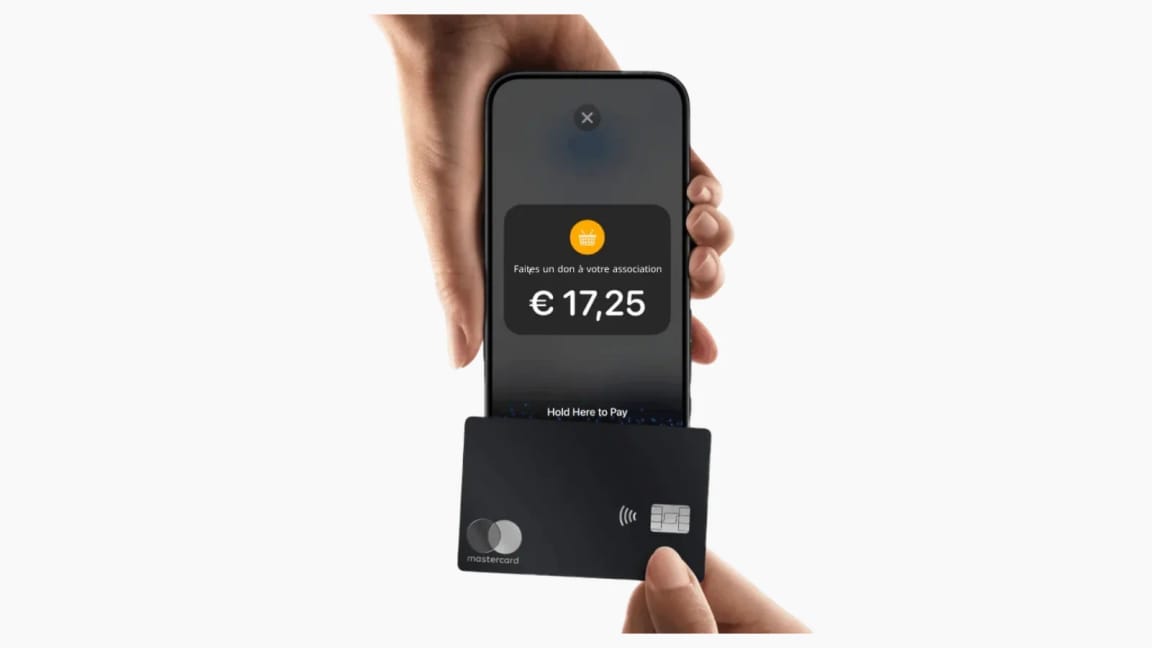
Your phone becomes a payment terminal: enter the amount, the donor holds their card near it, and it's paid. No card reader, no subscription, on iPhone and Android.
- Activate Tap to Pay in the Donoor app
- Take a donation and send the donor their receipt
- Give your volunteers permission to take payments
Module 1
Why Tap to Pay?
A card terminal is expensive and gets left behind at the office. Your phone is always in your pocket.
Module content · 1 min
- What Tap to Pay is
- The cards and phones that work
- What you need before you start
Content you may find useful
See the step-by-step guide (3 steps)
- 1
A terminal in your phone
Tap to Pay lets you take contactless card payments directly on your phone, with the Donoor app. The donor holds their card, phone or watch near it.
- 2
Accepted payment methods
Visa, Mastercard and CB (French bank) cards, as well as Apple Pay and Google Pay.
- 3
What you need
A Stripe account connected to Donoor, and an iPhone XS or later (iOS 16.4 minimum) or an Android phone that supports contactless payment.
Module 2
Activating Tap to Pay
It only takes a few seconds, once per phone.
Module content · 1 min
- Installing the Donoor app
- Activating Tap to Pay
- Allowing location access
Content you may find useful
See the step-by-step guide (3 steps)
- 1
Install the app
Download the Donoor app from the App Store or Google Play, then log in with your account.
- 2
Activate Tap to Pay
Tap Collect, the centre button in the bottom bar, then Activate Tap to Pay. If Stripe isn't connected yet, the app offers Connect Stripe.
- 3
Allow location access
Allow precise location: it is required for contactless payments. If you refused it, Open settings takes you to the right place.
Module 3
Taking a donation
Enter the amount, hold out the phone, and it's paid in a few seconds.
Module content · 1 min
- Entering the amount
- Adding fees or the donor's email
- Taking the card payment
Content you may find useful
See the step-by-step guide (3 steps)
- 1
Enter the amount
Type the amount on the keypad, or use the €5, €10, €20 and €50 shortcuts.
- 2
Add the options
The Email chip saves the donor's email so you can send them their receipt. The Fees chip adds the fees to the amount so that the organisation receives 100% of the donation.
- 3
Take the payment
Tap Tap to Pay on iPhone (or Charge on Android) and hold the phone out to the donor. They hold their card, phone or watch near it: the payment is accepted in a few seconds.
Tip
Hold the phone flat, screen facing the donor: the card is read at the top of the phone, near the camera.
Module 4
The receipt and tracking donations
The donor leaves with their receipt, and the donation appears straight away in your dashboard.
Module content · 1 min
- Sending a receipt by email
- Sending a tax receipt
- Finding the donations you have taken
Content you may find useful
See the step-by-step guide (3 steps)
- 1
Send the receipt
After the payment, offer Send a receipt by email, or Send a tax receipt if your organisation issues them. The screen confirms it has been sent.
- 2
Find the donation
In the dashboard, open Fundraising › Donations and filter by the Tap to Pay source: every payment appears there with its date and amount.
- 3
Receive the money
Donations taken with Tap to Pay follow the same path as your online donations: they are paid out automatically to the organisation's bank account.
Module 5
Letting your volunteers take payments
Several volunteers can take payments at the same time, each with their own phone.
Module content · 2 min
- Inviting a volunteer to the team
- Giving them the Tap to Pay permission
- Getting ready for a fundraising day
See the step-by-step guide (3 steps)
- 1
Invite the volunteer
In Settings › Team, click Invite a member and choose the Volunteer role: they can take payments with Tap to Pay, without seeing the amounts collected or the payouts.
- 2
Check their permission
Click the member to check that the Tap to Pay permission is ticked. Without it, the app shows “Payment collection not allowed”.
- 3
Test before the big day
Each volunteer installs the app, logs in and makes a €1 test payment before the event.
Questions? We have answers
Which phones work with Tap to Pay?
On iPhone, an iPhone XS or later with iOS 16.4 minimum. On Android, a phone that supports contactless payment. Visa, Mastercard and CB (French bank) cards, Apple Pay and Google Pay are accepted.
Do I need to buy a card terminal?
No. The phone is enough: Tap to Pay works with the free Donoor app, with no card reader and no subscription.
How much does a Tap to Pay payment cost?
Donoor takes no commission. Only Stripe's payment fees apply, and the donor can choose to cover them.
Can the donor receive a tax receipt?
Yes, if your organisation issues tax receipts on Donoor: after the payment, tap “Send a tax receipt”.
Got a question? Let's talk.
30 minutes on a video call to discover Donoor, ask your questions and set up your organisation together.
Free, no commitment