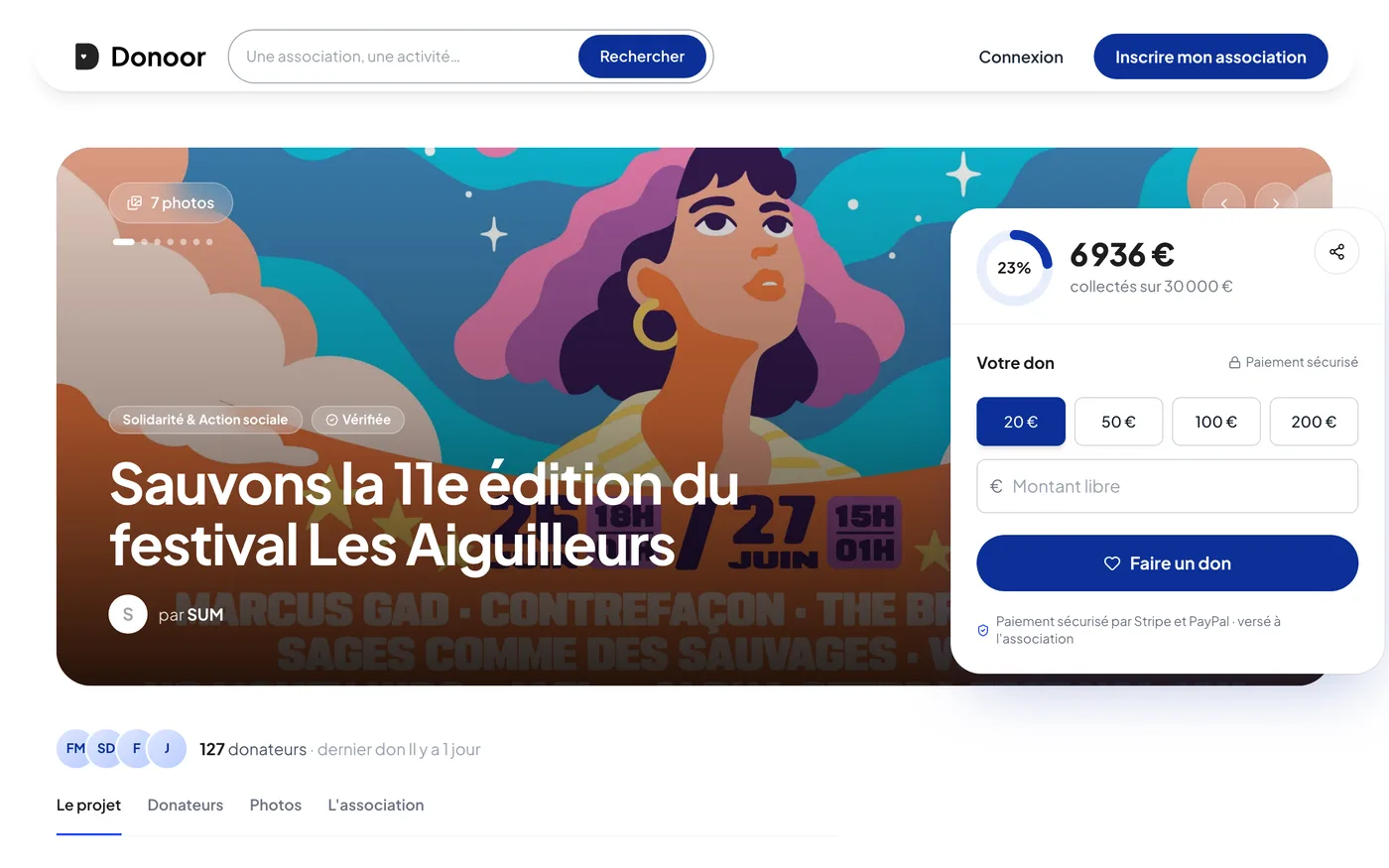
Fundraiser
Running a successful online fundraiser
A self-paced course to create a fundraiser that reaches its goal: building work, a trip, equipment, an emergency…
- 5 modules · 13 min
- 2 practical guides to download
- 9 articles to go further
Introduction
Course content
Create a fundraiser with a goal, tell the story of your project, keep the gauge moving and thank your donors right down to the last euro.
- Create a fundraiser with a goal, photos and a well-crafted page
- Tell the story of your project and show the impact of each donation
- Share the fundraiser, post updates and thank your donors
Module 1
Creating your fundraiser
The four-step wizard: in a few minutes your fundraiser exists, as a draft, ready to be completed.
Module content · 2 min
- Title, address and project description
- The main image and the gallery
- The theme, the video and a word from the organisation
- Goal, end date and display options
See the step-by-step guide (5 steps)
- 1
Start creating
In the menu, click Fundraisers, then New fundraiser.
- 2
Information
Give the fundraiser a Title, check its Public link, then write the Description and the What donations will fund text.
- 3
Gallery
Add the Fundraiser image (landscape format, 1600 × 900 px recommended) and up to 10 photos in the Gallery. This step is optional.
- 4
Content
Choose the Theme, and if you like add a YouTube video and A word from the association: a short message signed by someone in charge, with their photo.
- 5
Settings
Switch on Set a goal and enter the amount, add an End date if needed, and keep Show donors switched on. Click Create the fundraiser: it is saved as a draft, and nothing is visible yet.
Tip
If your organisation issues tax receipts, the Tax-deductible option is switched on automatically: the page then says “66% of the donation is tax-deductible”.
Module 2
Customising your fundraiser
Show the impact of every donation, share news and set up the fundraiser the way you want.
Module content · 3 min
- Impact amounts: “what your gift funds”
- A word from the organisation
- Posting an update
- Settings: goal, end date, privacy, donors
Content you may find useful
See the step-by-step guide (6 steps)
- 1
Open the configuration
In Fundraisers, open your fundraiser. The left-hand menu, Configuration, brings together Information, Gallery, Updates, Impact amounts, A word from the association and Settings.
- 2
Add impact amounts
In Impact amounts, click Add an impact amount: an amount, a title, a short description and an image. Up to 4 cards, shown to donors under “What your gift funds”.
- 3
Sign your message
In A word from the association, someone in charge speaks to donors: a short message, their name, their role and their photo.
- 4
Post an update
In Updates, click New update: a title (optional), a message and up to 5 images, then Add the update.
- 5
Adjust the settings
In Settings: Set a goal, End date, Private fundraiser (only reachable through its link), Hide the amount raised, Show donors, Allow anonymous donations, Donor messages and Tax-deductible.
- 6
Save
As soon as a section is changed, the Unsaved changes bar appears: click Save.
Tip
One update at each stage (first donations, halfway, work started) brings your donors back and gives the fundraiser a fresh push.
Module 3
What donors see, stats and preview
See your fundraiser through a donor's eyes, test the donation, and track who gives and how much.
Module content · 3 min
- Previewing the public page
- Simulating a donation to test the journey
- The page as donors see it
- The fundraiser's donors and statistics
Content you may find useful
See the step-by-step guide (5 steps)
- 1
Open the preview
In your fundraiser, click Preview: the page is shown exactly as your donors will see it.
- 2
Simulate a donation
Click Simulate a donation to go through the donation form as a donor would.
- 3
What donors see
At the top, the gauge: the amount raised against the goal, the number of donors and the latest donation. Then the project, “What donations will fund”, the donors, the photos, the updates and the organisation, with the Donate and Share the fundraiser buttons.
- 4
The donation form
The donor chooses an amount, sees “What your gift funds”, can give anonymously and cover the fees. If the fundraiser is tax-deductible, the page says “66% of the donation is tax-deductible”.
- 5
Track your donors and stats
The Donors section lists every donation to the fundraiser; Stats shows how the fundraising is progressing.
Tip
Make a small real donation yourself before sharing the fundraiser: you will receive exactly the same emails as your donors.
Module 4
Making it live, pausing, ending
Draft, live, paused, ended: what each status changes, and what happens to the public page.
Module content · 3 min
- Draft: the page is being prepared
- Live: the fundraiser accepts donations
- Paused: the page stays visible, with no new donations
- Ended: the page announces the end, and it can be reopened
Content you may find useful
See the step-by-step guide (6 steps)
- 1
Draft
A newly created fundraiser is a draft. Its public page shows “Fundraiser in preparation”: nobody can donate yet.
- 2
Make it live
At the bottom of the fundraiser menu, click Publish, then confirm. The page now accepts donations.
- 3
Pause it
Pause keeps the page visible but stops accepting donations: the page shows “Fundraiser paused”. Handy for a project in several phases.
- 4
End it
End the fundraiser stops donations and the page announces “Fundraiser ended”. With an End date, the fundraiser closes on its own at midnight on that day.
- 5
Reopen if needed
An ended fundraiser can be reopened at any time with Reopen the fundraiser (first choose a new end date if the old one has passed).
- 6
From the list
In Fundraisers, the ⋮ menu on each card also offers Pause, Move to draft, End the fundraiser, Duplicate and Delete.
Tip
Once the fundraiser has closed, post a final update with the result and photos: it is the best moment to say thank you.
Module 5
Sharing your fundraiser
The first few days matter most: share the fundraiser wherever your donors are.
Module content · 2 min
- Copying the link and sharing in one click
- The QR code and the poster to print
- A Facebook group, an Instagram story
- The fundraiser on your website
See the step-by-step guide (6 steps)
- 1
Copy the link
At the bottom of the fundraiser menu, Copy puts the donoor.org/c/… address on your clipboard, ready to paste into a message or an email.
- 2
Share in one click
Share opens WhatsApp, Facebook, X, Telegram, Messenger, text message or email, with the link ready to go.
- 3
In a Facebook group
Paste the link into a post in the group: Facebook shows the fundraiser's photo and title. Add a sentence about what each donation makes possible.
- 4
In an Instagram story
Copy the link, post a story and add the “Link” sticker with the fundraiser's address: your followers can donate in a single tap.
- 5
The QR code and the poster
In the share panel, the QR code line lets you Print a poster or Save the image for your premises and events.
- 6
On your website
Embed on my site displays the fundraiser on your website, in Card format (photo, gauge and donate button). Add your site under Allowed domains, choose your platform and click Copy.
Tip
Ask your members and volunteers to give first: a fundraiser that already has donors inspires confidence in the next ones.
Questions? We have answers
What is the difference between a fundraiser and the payment link?
The payment link is your organisation's permanent donation page. A fundraiser funds a specific project, with its own goal, gauge, photos and updates. You can have as many fundraisers as you have projects.
How many fundraisers can I create?
As many as you like. Each fundraiser has its own page, gauge and donors, and you can duplicate one to launch a new project more quickly.
Are donations to a fundraiser tax-deductible?
Yes, if your organisation has activated tax receipts on Donoor (66% tax reduction in France). The “Tax-deductible” option is then switched on for the fundraiser, and each donor receives their receipt by email.
What happens if the goal is not reached?
Your organisation keeps all the donations received: the money reaches its account as it comes in, whether or not the goal is reached.
Got a question? Let's talk.
30 minutes on a video call to discover Donoor, ask your questions and set up your organisation together.
Free, no commitment