Membership
Running a successful membership campaign
A self-paced course to move from paper forms to online membership, and run successful campaigns every year.
- 9 modules · 16 min
- 1 practical guide to download
- 14 articles to go further
Introduction
Course content
Replace the paper form with online membership: plans, approving requests, membership cards, automatic reminders and renewals.
- Create a membership plan: rates, duration and information requested
- Approve requests and send membership cards
- Remind your members and succeed with renewals
Module 1
From paper forms to online membership
Less paperwork and fewer cheques to chase, more members up to date with their fees.
Module content · 1 min
- The benefits of online membership
- Membership or membership fee: what are we talking about
- Preparing your price list
See the step-by-step guide (3 steps)
- 1
Open day and night
Your members join from their phone, at any time, and pay online. No more forms to copy out or cheques to pay in.
- 2
Records always up to date
Each membership arrives with the information you need, in a table you can export whenever you like.
- 3
Prepare your rates
Before you start, list your options: full rate, reduced, family, student… and how long membership lasts (a year, a season, no limit).
Module 2
Creating your membership plan
In four steps: the name, the price, the duration and the presentation. It stays as a draft until you publish it.
Module content · 2 min
- The membership's name and public link
- Fixed amount, free or pay what you want
- Duration: from sign-up, fixed dates or no limit
- The banner and the description
See the step-by-step guide (5 steps)
- 1
Start creating
In the menu, click Memberships, then New plan. Enter a Membership name: its public link will be donoor.org/a/your-membership.
- 2
Choose the price
Fixed amount, Free or Pay what you want.
- 3
Choose the duration
Duration counts from each person's sign-up (one year by default). Fixed dates gives everyone the same end date, handy for a sports season. No limit means the membership never expires.
- 4
Present the membership
Add an Image and a Description: what the membership includes, its benefits, the year's programme.
- 5
Create the membership
Click Create the membership. It is saved as a Draft: no one can see it until you have made it live.
Tip
Only ask for information you really need: it's a GDPR requirement, and a short form gets filled in to the end.
Module 3
Rates, options and form
Build your price list, add options, ask your questions and create your promo codes.
Module content · 3 min
- Adding rates: senior, youth, family…
- Options, linked to one rate or to all
- The questions and documents to ask for
- The number of places and promo codes
Content you may find useful
See the step-by-step guide (7 steps)
- 1
Add your rates
In Settings › Rates, click Add a rate: name, description, amount (Fixed price, Pay what you want or Free) and duration. The pencil edits an existing rate.
- 2
Offer options
In Options, Add an option offers a paid or free extra: jersey, licence, insurance… You can turn on Mandatory option and Limit quantity.
- 3
Link an option to one rate… or to all
By default, an option is set to All rates. Turn on Choose the applicable rates, then tick the rates you want: for example, the jersey only for seniors.
- 4
Ask your questions
In Form, click Add a field: text, date, choice, yes/no, address or File (document) for a medical certificate. Make it Required if needed, and limit it to certain rates with Choose the relevant rates. Last name, first name and email are already asked for.
- 5
Adjust the parameters
In Parameters: Limit the total number of members, Private membership (only reachable through the link), an optional donation on top of the membership, Automatic proration and Requires approval.
- 6
Create promo codes
In Promo codes, click Create a promo code: a discount as a Percentage or a Fixed amount, with a number of uses if you wish.
- 7
Save
Click Save in the banner at the top: all your changes are saved in one go.
Tip
One link for all your rates: members choose theirs on the same page, and only see the options and questions that apply to them.
Module 4
Publishing and sharing
Publish the membership, share it, and see what your future member goes through when paying.
Module content · 2 min
- Making the membership live
- Sharing the link and embedding it on your website
- The membership journey on a phone
- The membership card sent by email
Content you may find useful
See the step-by-step guide (4 steps)
- 1
Make it live
Click the status button at the bottom of the membership menu (Draft), then Publish, and confirm with Activate.
- 2
Share it
Right next to it, Copy, Share and Embed on my website spread your membership on WhatsApp, social media, by email, as a QR code or on your website.
- 3
Joining
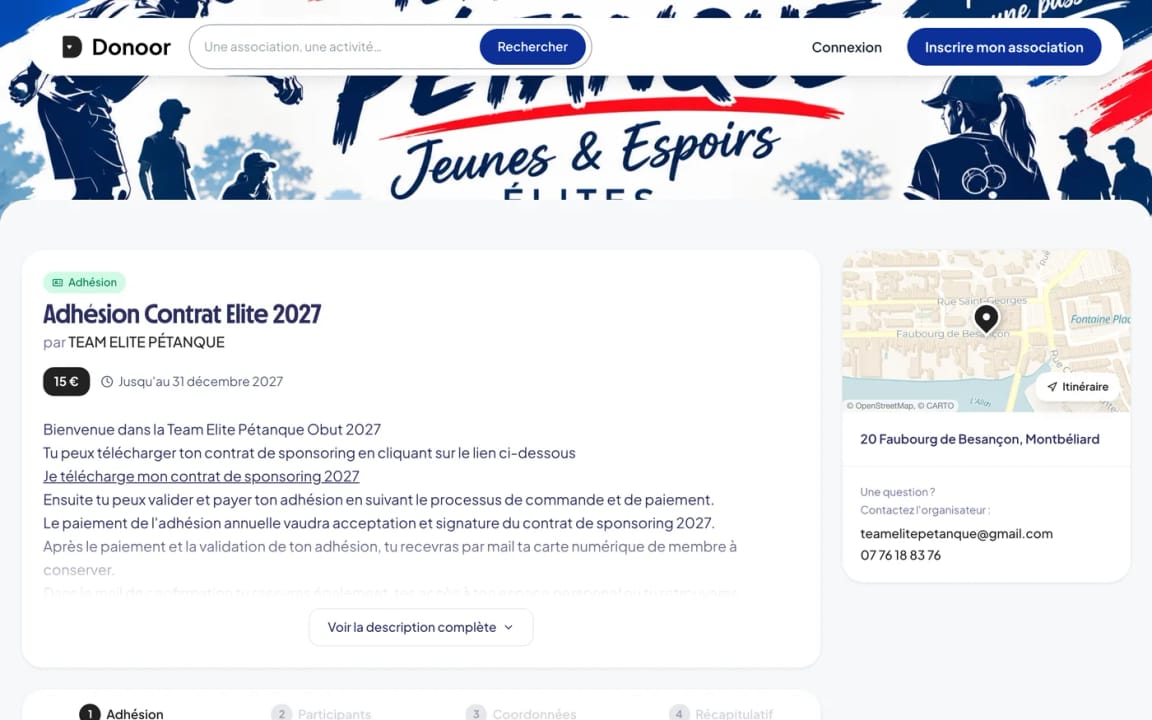
The future member chooses their rate, fills in their details, ticks their options, answers your questions, enters a promo code if they have one, then pays: Apple Pay, Google Pay, card or PayPal.
- 4
The membership card
They immediately receive a confirmation email with their membership card as a PDF and its QR code. They can also find it in their donor area.
Module 5
Following your members
Who is up to date, on which rate and with which options: it's all in the members list.
Module content · 2 min
- The list and each member's record
- Adding a member who paid on site
- Searching and filtering
- Importing and exporting the list
Content you may find useful
See the step-by-step guide (5 steps)
- 1
Open the list
In your membership, open Members: each member with their membership number, rate, options, period and amount paid.
- 2
Open a record
Manage opens a member's record: their payments, answers and history. You can Change plan, edit their Options, Resend the membership card or Mark as expired.
- 3
Add a member
Add a member signs someone up by hand: their contact details, rate and answers, then the payment (cash, cheque, bank transfer…).
- 4
Search and filter
Search by name, email or membership number, and filter by status or rate.
- 5
Import and export
Import a file adds an existing list from an Excel or CSV template. The download icon exports the list as Excel, CSV or PDF.
Tip
For a paper list or an old file, download the import template: your columns are recognised automatically.
Module 6
Approving membership requests
Choose who joins the organisation: requests wait for your approval before payment.
Module content · 2 min
- Turning on approval for sign-ups
- Approving or declining a request
- Recording a cash or cheque payment
- The members table
Content you may find useful
See the step-by-step guide (5 steps)
- 1
Turn on approval
In Settings › Parameters, switch on Requires approval: sign-ups must then be approved before payment. The future member sees the Send my request button.
- 2
Handle requests
In Members, open the To process tab. For each request, click Approve or Decline (with a reason if you like).
- 3
Choose when membership starts
When approving, choose Once payment is made or Now, and tick Email the payment link so the member can pay online.
- 4
Record offline payments
A member paid in cash or by cheque? Click I've been paid to approve their membership.
- 5
Follow your members
The Members tab lists each member with their number, status and dates. Filter by Active, Expired or Pending, and export the list.
Module 7
Membership cards
Each member receives their membership card, with a QR code you can check in one scan.
Module content · 1 min
- The card sent automatically by email
- What the card's QR code shows
- Checking a card with the app
- Resending a lost card
Content you may find useful
See the step-by-step guide (4 steps)
- 1
Automatic sending
As soon as the membership is paid or approved, the member receives an email with their membership card as a PDF, to print or keep on their phone.
- 2
The card's QR code
When scanned, it opens a page showing “Active membership”, the membership number and the expiry date, with the words “Verified by Donoor”.
- 3
Check at the door
In the Donoor app, open the membership in the Memberships tab and tap Scan a membership card. Point at the QR code: the screen shows Valid membership, with the name, the plan, the options and the end date.
- 4
Resend a card
A member has lost their card? Open their record and click Resend the membership card. They can also find it in their donor area, under Memberships.
Module 8
Reminders and renewal
Reminders go out automatically before expiry: your members renew without you having to chase them.
Module content · 2 min
- Automatic reminders before expiry
- Reminding expiring members yourself
- Renewing from one season to the next
Content you may find useful
See the step-by-step guide (3 steps)
- 1
Automatic reminders
30, 15 and then 7 days before their membership ends, each member receives a “Your membership is expiring soon” email at 9 am. You don't have to do anything.
- 2
Send reminders yourself
In the membership's Mailing section, write to members who are Expiring soon (less than 30 days) or to Expired members.
- 3
Renewal on the member's side
Members renew from their donor area, under Memberships, with the Renew button, or by going back to the membership page.
Tip
For a new season with different rates, duplicate your membership from the status button (Duplicate) rather than starting from scratch.
Module 9
Emailing your members
A message to all your members, or only to those who need to renew, in a few clicks.
Module content · 1 min
- Choosing the recipients
- Writing the subject and the message
- Checking with the preview, then sending
Content you may find useful
See the step-by-step guide (4 steps)
- 1
Open the mailing
In your membership, open the Mailing section.
- 2
Choose the audience
All members, Active members, Expiring soon or Expired members.
- 3
Write
Fill in the Subject and the Message. The “Hello [first name]”, your logo and your colours are added automatically.
- 4
Check and send
Check how it looks with Preview, then click Send and confirm. An email that has been sent cannot be recalled.
Tip
Each organisation can send up to 500 emails a month. The number remaining is shown before sending.
Questions? We have answers
What are the benefits of online membership?
It saves time: card payment is automatic and secure. Your records stay up to date: your members' information goes straight into your table. And membership is open 24/7, from a phone, tablet or computer.
Can I reproduce my paper form?
Yes. The membership form accepts all kinds of fields: text, date, choice, address, phone number, file… You get your usual form, with online payment on top.
Can my members pay in cash?
Yes. Turn on approval for sign-ups: the member sends their request online, you take the payment in person and you approve their membership with “I've been paid”.
How much does managing memberships with Donoor cost?
Nothing for your organisation: €0 subscription and 0% commission. Only bank fees apply to paid memberships.
Got a question? Let's talk.
30 minutes on a video call to discover Donoor, ask your questions and set up your organisation together.
Free, no commitment