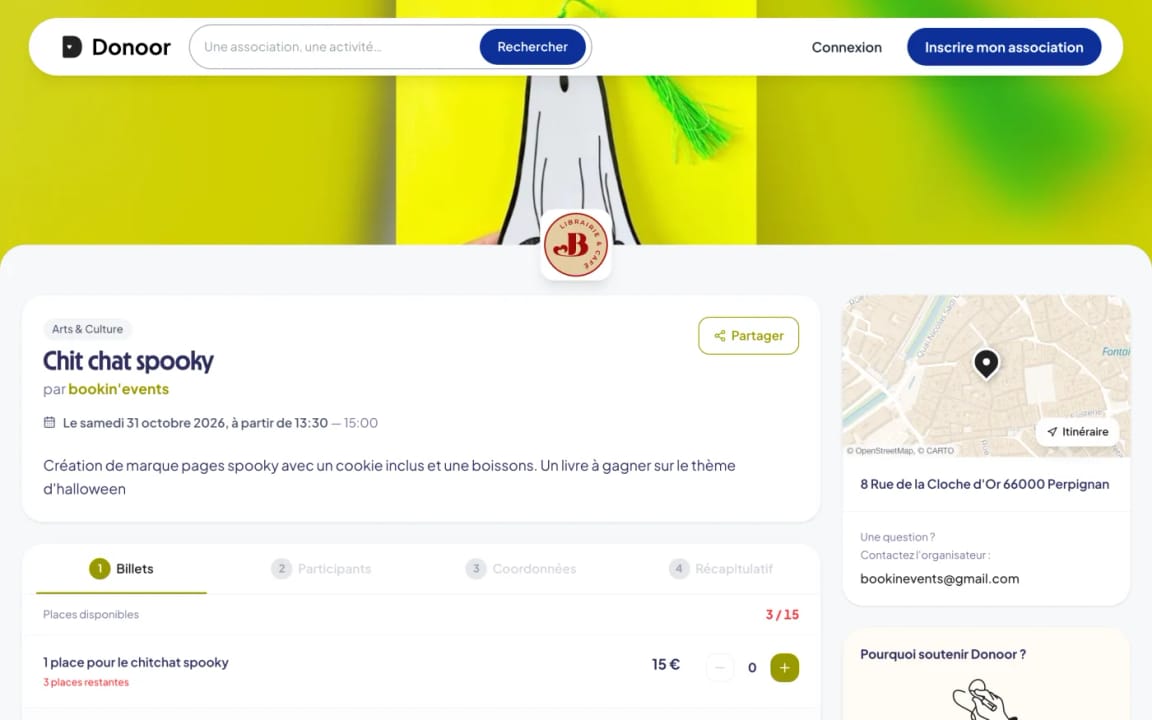
Ticketing
Boosting your events with ticketing
A self-paced course to set up successful ticketing for all your events: gala, dinner, tournament, outing, talk…
- 6 modules · 11 min
- 2 practical guides to download
- 6 articles to go further
Introduction
Course content
From creating the event to the big day: ticket types, ticket sales, the participant list and checking people in with the app.
- Create and customise ticketing for your event
- Sell your tickets and follow your participants right up to the big day
- Check people in by scanning tickets with your phone
Module 1
Creating your event
In four steps: the name, the date, the price and the presentation.
Module content · 2 min
- The event's name and public link
- The date, duration and location
- Paid ticket, free entry or pay what you want
- The image and the description
Content you may find useful
See the step-by-step guide (4 steps)
- 1
Start creating
In the menu, click Ticketing, then New event. Enter an Event name: its public link will be donoor.org/b/your-event.
- 2
The date
Choose the duration (No end time, Single day or Multiple days), the date and times, then the Location.
- 3
The price
Paid ticket with its price, Free entry, or Pay what you want with a minimum amount. You can add other rates afterwards.
- 4
The presentation
Add an Image (banner format, 1920 × 400 px recommended) and a Description, then click Create the event. It is saved as a draft.
Module 2
Tickets, rates and options
Build your price list, add options and set the number of places.
Module content · 2 min
- Adding rates: adult, child, member…
- Limiting places, per rate or overall
- Options: meal, T-shirt…
- The information to ask participants for
Content you may find useful
See the step-by-step guide (5 steps)
- 1
Add your rates
In Configuration › Rates, click Add a rate: name, description and amount (Fixed price, Pay what you want or Free). Limit the total quantity sets the number of places for that rate.
- 2
Add options
In Options, Add an option offers an extra (meal, T-shirt, parking…), required or not, for the rates of your choice.
- 3
Ask your questions
In Form, Add a field asks for whatever you need: dietary requirements, size, phone number, document… First name, last name and email are already included.
- 4
Adjust the settings
In Settings: Limit the total number of participants for the venue's capacity, Waiting list for when it's full, Allow participants to make a donation, and Private event if only the link should give access.
- 5
Add promo codes
In Promo codes, create a discount as a percentage or in euros, with a number of uses and validity dates.
Tip
Add a slightly more expensive “Supporter” rate: many participants like to give a little extra on top of their ticket.
Module 3
Going on sale and sharing
Publish your ticketing, share it, and see what your participants experience when they pay.
Module content · 2 min
- Putting the event online
- Sharing the link and embedding ticketing on your website
- The participant's purchase journey
- Tickets and the reminder sent by email
Content you may find useful
See the step-by-step guide (4 steps)
- 1
Go live
Click the status button at the bottom of the event menu (Draft), then Publish. You need a name, a date and at least one rate.
- 2
Share
Right next to it, Copy, Share and Embed on my site spread your ticketing on WhatsApp, social media, by email or on your website.
- 3
The purchase
The buyer chooses their tickets, enters each participant's name and their own contact details, then pays.
- 4
The tickets
They immediately receive their tickets as PDFs by email, one per participant, each with its QR code. The day before the event, at 9 am, a reminder is sent automatically.
Module 4
Following your participants
Who's coming, with which ticket, and who's waiting for a place: it's all in the participant list.
Module content · 2 min
- The participant list and its filters
- Adding a participant or importing a list
- The waiting list
- Exporting for the big day
Content you may find useful
See the step-by-step guide (4 steps)
- 1
Open the list
In your event, open Participants. Filter by Valid, Scanned or Not scanned, and find each ticket with its rate and purchase date.
- 2
Add participants
Add a participant registers someone by hand (paying on the day, a guest…), while Import a file adds a whole list.
- 3
Manage the waiting list
When the event is full, interested people sign up to the waiting list. As soon as a place becomes free, the first to sign up are notified automatically; you can also notify them with Notify in the Waiting tab.
- 4
Export
Export downloads the list as Excel, CSV or PDF: handy for the welcome desk or the caterer.
Module 5
Checking people in on the day
With the Donoor app, each volunteer scans tickets at the entrance, with no paper list.
Module content · 2 min
- Opening the ticket scanner
- Validating an entry in two steps
- Tickets already scanned or invalid
- Following the number of entries live
Content you may find useful
See the step-by-step guide (4 steps)
- 1
Open the scanner
In the Donoor app, open the Ticketing tab and tap Scan, or open your event and tap Scan a ticket.
- 2
Scan the ticket
Point at the ticket's QR code, on paper or on a phone. The screen shows Valid ticket: check the person, then tap Validate entry.
- 3
Spot fraud
A ticket that has already been used shows Already scanned, with the time and the name of the volunteer who validated it. A fake ticket shows Invalid ticket.
- 4
Follow the entries
At the top of the screen, the Tickets, Scanned and Remaining counters update with every entry.
Tip
Damaged QR code? Tap Enter a ticket number and type in the ticket number (TKT-…).
Module 6
Emailing your participants
A change of time, a reminder, a thank-you: let all your participants know in one go.
Module content · 1 min
- Choosing the recipients
- Writing and checking the message
- Saying thank you after the event
Content you may find useful
See the step-by-step guide (3 steps)
- 1
Open the mailing
In your event, open the Mailing section.
- 2
Choose the audience
All participants, Already arrived or Not yet arrived.
- 3
Write and send
Fill in the Subject and the Message, check it with Preview, then click Send and confirm. Your logo and colours are added automatically.
Tip
The next day, write to the participants who have Already arrived to thank them and share the photos: it's the best moment to announce your next event.
Questions? We have answers
What kinds of events can be organised with ticketing?
All kinds: small or large, free or paid, public or private, over one or several days. Gala, charity dinner, tournament, outing, talk, fête, class, workshop…
When should I set up ticketing?
As soon as you start organising. Registrations tell you how many people will come, which helps you plan the venue, the food and the volunteers.
How do I scan tickets at the entrance?
The easiest way is the Donoor app, free on iPhone and Android: every volunteer allowed to validate tickets scans with their own phone. You can also scan from the dashboard, with the “Scan” button in ticketing.
How much does Donoor ticketing cost?
Nothing for your organisation: €0 subscription and 0% commission. Only bank fees apply to paid tickets, and free tickets cost nothing.
Got a question? Let's talk.
30 minutes on a video call to discover Donoor, ask your questions and set up your organisation together.
Free, no commitment