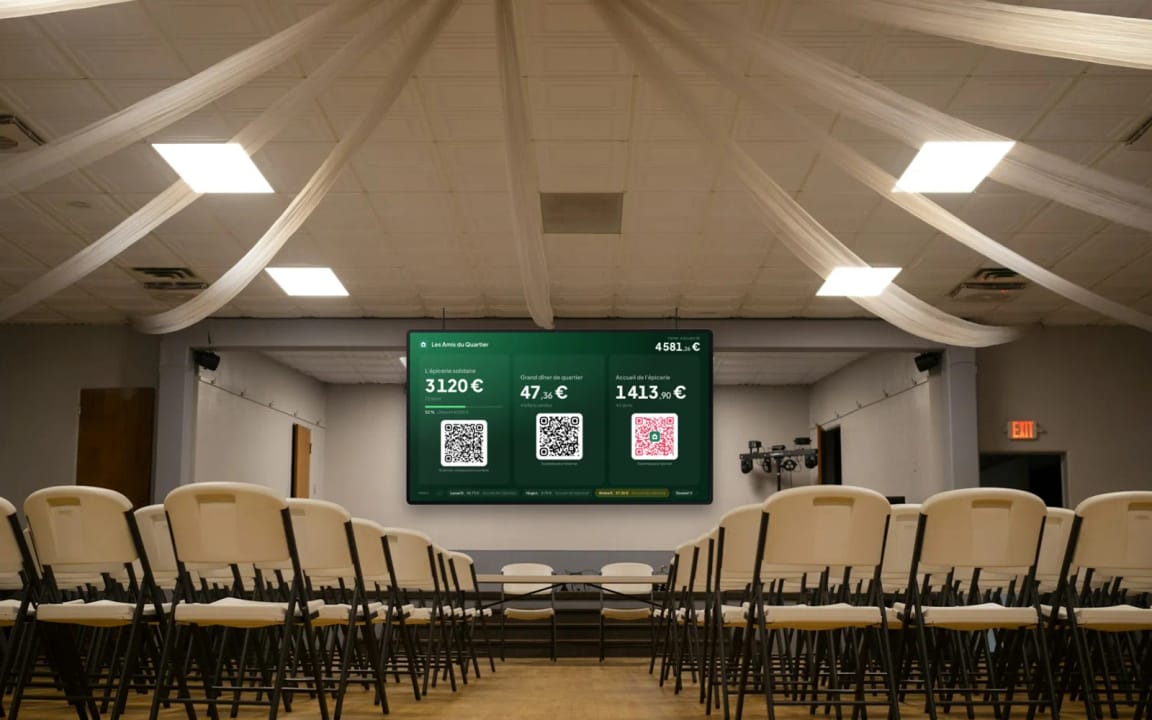
TV display
Showing your fundraising live on a TV
The course to bring your fundraising to life in front of everyone, at your events as well as at the reception of your premises.
- 5 modules · 10 min
- 1 practical guide to download
- 6 articles to go further
Introduction
Course content
At a gala, a charity dinner or at reception, show your fundraising on a TV: amounts go up with every donation, your QR codes are on screen and every donor is thanked live.
- Create a screen with your fundraisers, events, memberships, shop and QR codes
- Customize it and open it on any TV, with no account
- Understand what the room sees when a donation comes in
Module 1
Create a screen
Choose what the TV shows: one fundraiser, several, or the whole organization.
Module content · 2 min
- Open “TV display”
- Name the screen
- Choose the fundraisers to show
- Watch the TV take shape live
Content you may find useful
See the step-by-step guide (5 steps)
- 1
Open the TV display
At the bottom of the menu, click TV display, then Create a screen (or New screen if you already have one).
- 2
Name the screen
At the top, next to the pencil, give it a name so you can find it again: “20 November gala”, “Reception”…
- 3
Choose the fundraisers
On the left, click the fundraisers, events, memberships, shops or QR codes to show: each one becomes a block, with its amount and its QR code. Whole organization shows a single counter with everything you receive. Up to six blocks per screen.
- 4
Look at the preview
On the right, the TV takes shape before your eyes, with the real amounts.
- 5
Create the screen
Click Create screen: it appears in the list, live.
Tip
One screen per use: one for the gala with the evening's projects, one for reception with the whole organization.
Module 2
Customize the screen
Titles, goals, text below the QR codes, colors: a TV that looks like your event.
Module content · 2 min
- Change a block's title
- Set a goal and its progress bar
- Write the text below the QR code
- Choose what the TV shows, and its colors
Content you may find useful
See the step-by-step guide (6 steps)
- 1
Open the screen
In the list, click the screen's thumbnail, or … then Edit.
- 2
Click a block
Click a block in the preview: its settings open on the left.
- 3
Title and goal
Change the Displayed title (60 characters at most; left empty, the block has no title) and the Goal: a progress bar appears.
- 4
The text below the QR code
By default “Scan to donate” (or book, join, order). Write your own in Text below the QR code, 40 characters at most. The QR code switch removes the QR code from the block.
- 5
The screen settings
In Settings: Grand total, Latest donations, Donor first names, Number of donations, then the Background, its Intensity, the Goal color and the QR code size.
- 6
Save
Click Save: TVs that are on update by themselves.
Tip
The amounts shown are what the organization receives: bank fees and refunds deducted.
Module 3
Show the screen on the TV
A link to open on the TV: no account, no app, no equipment to buy.
Module content · 2 min
- Copy the screen's link
- Open it on the TV
- Switch to full screen
Content you may find useful
See the step-by-step guide (4 steps)
- 1
Copy the link
In the list, click … then Copy link: a short address, donoor.org/tv/…
- 2
Open it on the TV
In the browser of a smart TV, or of a computer connected to the TV with an HDMI cable. The Open button opens it on the computer you are using.
- 3
Switch to full screen
Move the mouse: the Full screen button appears at the top. It then disappears, along with the cursor.
- 4
Let it run
The TV keeps the screen from going to sleep when the browser allows it, reconnects by itself if the internet drops, and re-reads the amounts every minute.
Tip
The link is all you need: no account to sign in to on the TV. Keep it to yourself, like a key: you can turn it off or change it at any time.
Module 4
Donations live
What the room sees when someone scans and gives: the amount goes up and the donor is thanked.
Module content · 2 min
- Scanning the QR code on the TV
- The donation coming in: the amount and the “Thank you” line
- Several donations at once, large donations in gold
- Refunds
Content you may find useful
See the step-by-step guide (6 steps)
- 1
Scanning the TV
Each block has its QR code. Point the phone's camera at it: the donation page opens, with no app.
- 2
Giving
Apple Pay, Google Pay, card or PayPal: a few seconds are enough.
- 3
The donation comes in
A few seconds later, the block's amount and the total go up, and the donor appears alone in the middle of the Thank you line: first name, initial of the last name and the donation.
- 4
Several donations at once
They queue up: each one takes its turn in the middle.
- 5
Large donations
A donation well above the average of the latest donations is shown in gold.
- 6
A refund
The amount goes back down, with a brief red flash, live.
Tip
A donor who chose to stay anonymous is shown as “A donor”. To hide all first names, turn off Donor first names in the Settings.
Module 5
Manage your screens
A QR code's TV in one click, a link to turn off or change, a screen to delete.
Module content · 2 min
- A QR code's TV, from the QR codes page
- Turn a link off, then back on
- Create a new link
- Delete a screen
Content you may find useful
See the step-by-step guide (4 steps)
- 1
From a QR code
On the QR codes page, a QR code's screen button (Show on a TV) creates its TV, with its design, and opens it. It then appears in TV display.
- 2
Turn the link off
Click … then Turn link off: the TV shows “Screen turned off”. Turn link back on brings it back, with the same link.
- 3
Change the link
Link shared by mistake? New link: the old one stops working straight away, on every TV.
- 4
Delete a screen
Delete removes the screen. Your fundraisers and donations are not affected.
Tip
To create a screen, a team member must be allowed to see amounts.
Questions? We have answers
Do I need a Donoor account on the TV?
No. The screen's link is all you need: open it in the browser of the TV, or of the computer connected to it, without signing in.
What kind of TV do I need?
Any screen with a web browser: a smart TV, or a TV connected to a computer with an HDMI cable. A projector works too.
Do donations really appear live?
Yes: a few seconds after the payment, the amount goes up on every TV showing the screen. If the internet drops, the TV reconnects by itself and catches up.
Is the link secure?
The link is secret and impossible to guess. It only shows what you chose to display, and you can turn it off or replace it at any time.
How many TVs can show the same screen?
As many as you like: open the same link on several TVs and they all move at the same time.
Does the TV display cost anything?
No, it is free, like the rest of Donoor.
Got a question? Let's talk.
30 minutes on a video call to discover Donoor, ask your questions and set up your organisation together.
Free, no commitment