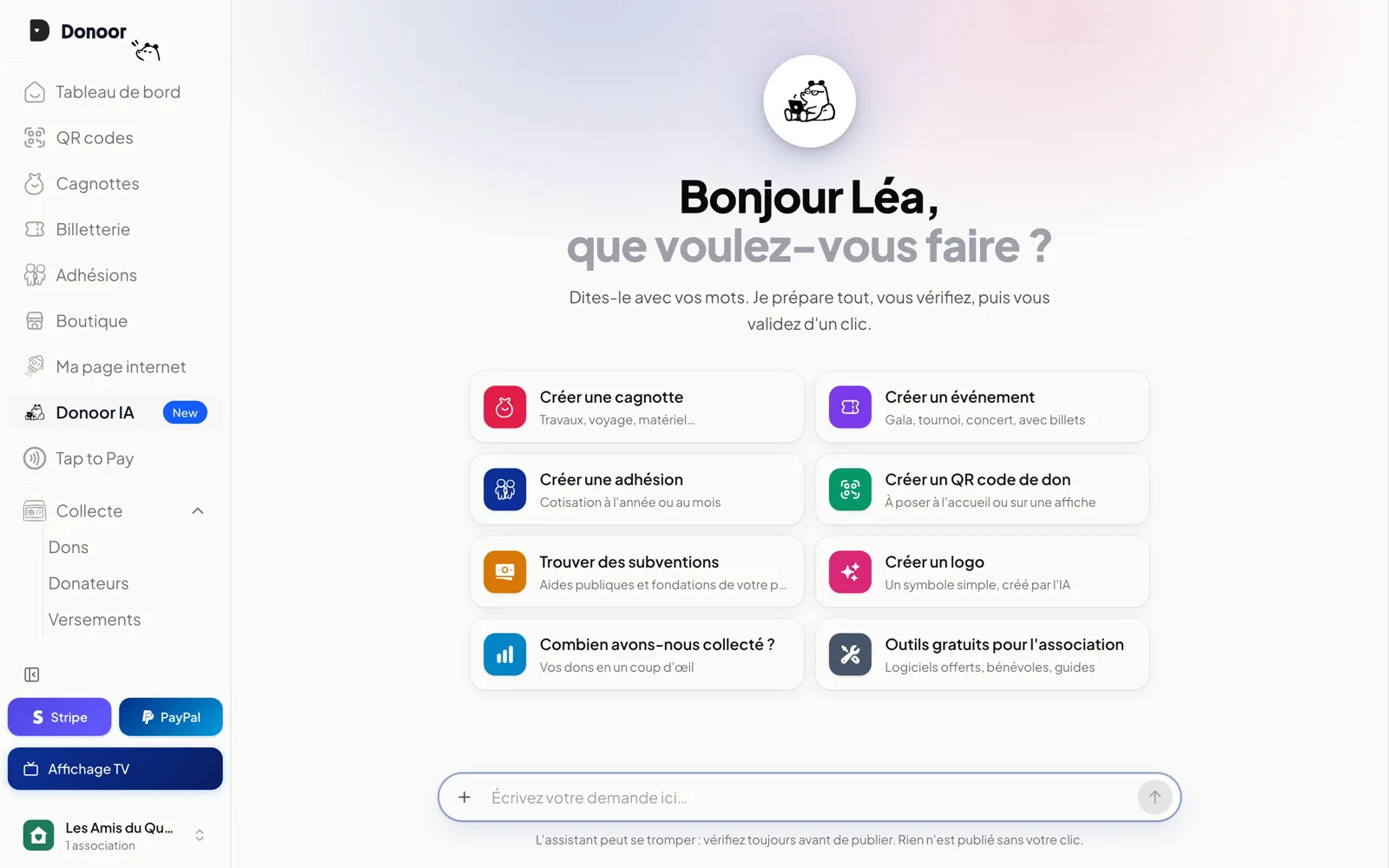
Donoor AI
Save your association time with Donoor AI
The course for handing Donoor AI the tasks that eat up your time, from the first message to a draft ready to publish.
- 11 modules · 20 min
- 1 practical guide to download
- 15 articles to go further
Introduction
Course content
Create your fundraisers, memberships and events in one sentence, have your texts written for you, find grants and ask questions about your figures: Donoor AI prepares, you review and approve.
- Create a fundraiser, a membership or an event by describing your project in your own words
- Have your titles and texts written, create a logo and find grants
- Ask questions about your donations and your account, and hand over to the Donoor team whenever you like
Module 1
Chat with Donoor AI
Where to find Donoor AI, how to ask it a question and what to ask.
Module content · 2 min
- Open the Donoor AI page from the menu
- Ask a question in your own words
- Find ideas with “What can I ask?”
- Find the same conversation in the bubble, on every page
Content you may find useful
See the step-by-step guide (5 steps)
- 1
Open Donoor AI
In the left menu of the dashboard, click Donoor AI. On other pages, the bubble at the bottom right opens the same conversation.
- 2
Write your question
In Type your request here…, write as you would to a colleague: “How do I turn on tax receipts?”, “Prepare a fundraiser for…”. Send with the arrow.
- 3
Read the answer
Donoor AI answers in a few seconds, in the language you write to it in. It knows your association and checks the state of your account before answering; its links open the right page directly.
- 4
No idea?
Click What can I ask? below the bar: create a fundraiser, an event, a membership, a donation QR code, find grants, create a logo, your figures, free tools. One click sends the request.
- 5
Add photos
The + on the left of the bar attaches your photos: they become the images of whatever Donoor AI prepares.
Tip
Donoor AI prepares, you decide: nothing is published without your click, and it never touches the money.
Module 2
Create a fundraiser by chatting
Describe your project in one sentence, with a photo: Donoor AI prepares the whole fundraiser as a draft.
Module content · 2 min
- Ask for a fundraiser
- Answer Donoor AI's questions
- Attach a photo
- Create the draft and review it
Content you may find useful
See the step-by-step guide (5 steps)
- 1
Ask for a fundraiser
On the Donoor AI page, click Create a fundraiser, or write “I'd like to create a fundraiser for…”.
- 2
Answer in your own words
Donoor AI only asks for what it's missing: the project, the amount to reach, the date. One sentence is enough: “To fill our street with flowers together with the residents, we need €1,800 before spring.”
- 3
Attach a photo
With the +, add one or more photos: the first becomes the fundraiser's image, the others its gallery.
- 4
Check the card
A card sums up the fundraiser: title, goal, end date, the start of the text, photo. No photo? Create an image with AI suggests one.
- 5
Create the draft
Click Create the draft: the fundraiser opens in your dashboard, everything filled in. It stays as a Draft, invisible to the public, until you put it online.
Tip
Something not right on the card? Just tell Donoor AI (“the goal is €2,000”): it redoes the card before you create anything.
Module 3
A membership filled in with one sentence
On the creation page, “Create with Donoor AI” fills in the name, price, duration and description.
Module content · 2 min
- Open “Create with Donoor AI”
- Describe the membership in one sentence
- Answer a question if needed
- Review each step before creating
Content you may find useful
See the step-by-step guide (4 steps)
- 1
Open the creation page
In Memberships, click New membership, then at the top right click Create with Donoor AI.
- 2
Describe the membership
One sentence with the price, the duration and what it's for: “Our 2027 membership: €20 per person to support the association.” Click Create the membership.
- 3
Answer if it asks
Is something missing (the duration, for example)? Donoor AI asks one or two questions: answer then Continue, or Write without answering.
- 4
Review
Everything is filled in: name, public link, price, duration, description. Go through each step with Continue and change whatever you like. Back to my text restores what you had written before.
Tip
The same button exists when creating a fundraiser, an event, a shop, a QR code, on your payment link and on your web page.
Module 4
Create an event by chatting
The date, place and price in one sentence: Donoor AI prepares the event and its ticketing, image included.
Module content · 2 min
- Ask for an event
- Give the date, place and price
- Have the cover image created
- Find the date, place and ticket in the event you created
Content you may find useful
See the step-by-step guide (4 steps)
- 1
Ask for an event
On the Donoor AI page, click Create an event.
- 2
Give the details
“The children's Christmas show, Saturday, December 19 at 3 pm, Paul Bert hall in Lyon. Tickets €5.” Free, pay what you want or ticketed: say it the way you'd say it out loud.
- 3
An image?
On the card, Create an image with AI draws a cover image (about 20 seconds). Another image suggests a different one. You can also send your own photo in the conversation.
- 4
Create the draft
Click Create the draft: the event opens with its text, image, date, place and ticket. Review it, then put it online.
Tip
Times are those of your association: an event at 3 pm stays at 3 pm, on the public page as on the tickets.
Module 5
Write your texts with Donoor AI
Next to the fields, Donoor AI suggests a title, shortens it, warms it up or follows your instruction; for long texts, it writes everything.
Module content · 2 min
- Suggest a title
- Shorter, longer, warmer
- Give an instruction
- Write a whole description
Content you may find useful
See the step-by-step guide (4 steps)
- 1
Click the Donoor AI button
Next to a title, a name or a link: Suggest a title (or Suggest a name, Suggest a link). Is the field empty? Say in a few words what it's about.
- 2
Donoor AI writes in the field
The suggestion is written directly in the field, and the menu stays open.
- 3
Change it in one click
Another proposal, Shorter, Longer or Warmer. Or write your instruction in Give an instruction…: “also mention the 3rd arrondissement”.
- 4
Long texts
Above a description, click Write with AI then Write the text: Donoor AI writes it from the title and what it knows about your association. Already have the text? Rephrase, Shorter, Longer, Format or Fix mistakes.
Tip
The text stays yours: edit, delete, start over. For 20 seconds, Cancel brings back the previous text.
Module 6
A logo and QR codes in your colours
No logo? Donoor AI draws one; your donation QR codes then take on its logo and colours.
Module content · 2 min
- Ask for a logo
- Set it in one click
- Dress up a QR code with AI
Content you may find useful
See the step-by-step guide (4 steps)
- 1
Ask for a logo
On the Donoor AI page, click Create a logo. Have an idea? Write it: “hands planting a flower”.
- 2
Choose
Donoor AI draws a simple symbol, without text, based on what your association does. Another proposal draws a different one.
- 3
Set it
Use as logo: it replaces your logo everywhere (public page, receipts, emails, QR codes). Also in Settings, with Create a logo with AI.
- 4
Your QR codes in your colours
In QR codes, New QR code then Customise with AI: the QR code takes on the association's logo and colours, and stays readable.
Tip
Want to go back to your old logo? In Settings, click the logo image to change it.
Module 7
Find grants
Donoor AI searches for grants, funding and calls for projects in your country that fit your association.
Module content · 2 min
- Start the search
- Specify your project
- Read each lead with its link
Content you may find useful
See the step-by-step guide (4 steps)
- 1
Ask
On the Donoor AI page, click Find grants, or write “Find us grants to renovate our premises”.
- 2
Specify if it asks
Donoor AI starts from your association (activity, town, country). For a specific project, say so: it searches for that.
- 3
Read the leads
Each lead comes with who funds it, what it's for, its amount and deadline when known, and the link to the official page. Expired funding is left out.
- 4
Check and apply
Open each lead's link and check the conditions on the official site before applying: it is the reference.
Tip
Also ask “What free tools exist for our association?”: free software, volunteers, official guides.
Module 8
Your figures, in one question
Your donations, your fundraisers, the state of your account: Donoor AI reads the answer in your association's data.
Module content · 2 min
- How much you collected over a period
- Where your fundraisers stand
- Whether your account is ready
Content you may find useful
See the step-by-step guide (3 steps)
- 1
Your donations
“How much did we collect this month?”, “and last month?”, “this year?”: the number of donations and the amount received, refunds deducted, with the latest donations.
- 2
Your fundraisers
“Where do our fundraisers stand?”: how many are online, the goal and the total collected.
- 3
Your account
“Is our account ready to receive donations?”: Stripe, PayPal, address, tax receipts, Tap to Pay. If something is blocking, it tells you first and shows you where to fix it.
Tip
Donoor AI sees the same figures as you: a member who isn't allowed to see amounts won't get them by asking either.
Module 9
Talk to someone on the team
Donoor AI answers right away, and the Donoor team is one click away, in the same conversation.
Module content · 2 min
- Hand the conversation over to the team
- Get their reply in the chat
- Go back to Donoor AI
- Book a call or write on WhatsApp
Content you may find useful
See the step-by-step guide (4 steps)
- 1
Ask for the team
Below the bar, click Talk to the team (in the bubble: Talk to a human). The conversation passes to the Donoor team, who can see everything that was said.
- 2
Write your message
The team replies in the same conversation, on the dashboard and in the app, usually within 24 hours.
- 3
Go back to Donoor AI
Whenever you like, Talk to the AI assistant again hands the conversation back to it.
- 4
A call or WhatsApp
At the top of the bubble: Book a call with the team, or the WhatsApp button.
Tip
Refunds, transfers, payment settings: these requests always go to the Donoor team, never to the AI.
Module 10
Donoor AI in the app
The same Donoor AI, the same conversation, on iPhone and Android.
- 1
Open Donoor AI
In the Donoor app, on the Settings tab, tap Donoor AI, right after your profile. It's the same conversation as on a computer.
- 2
Create from your phone
When creating a fundraiser, an event, a membership or a QR code, Create with Donoor AI fills everything in from one sentence.
- 3
The fields
The little mascot next to a field opens the same menu as on a computer: suggest, shorter, longer, warmer, or your own instruction.
Module content · 1 min
- Open Donoor AI in the app
- Create with Donoor AI from your phone
- The Donoor AI button in fields
Content you may find useful
Module 11
Choose who uses Donoor AI
For each team member: chat with Donoor AI, write with AI, create images.
- 1
Open the member's profile
In Settings › Team, click the member, then go to the Donoor AI card.
- 2
The three permissions
Chat with Donoor AI (chat and Donoor AI page), Write with AI on pages (create, improve, titles…), Create images with AI (logos, covers).
- 3
The default permissions
Owner and administrators: all three. Volunteers: chat and write. Members: chat. Turn each permission on or off, then Save.
Tip
Without the permission to chat, the person can still write to the Donoor team in the chat: the team is the one who replies.
Module content · 1 min
- The three Donoor AI permissions
- The permissions of each role
- Turn a permission on or off
Content you may find useful
Questions? We have answers
Do I need to know anything about artificial intelligence?
No. You write as you would to a colleague, Donoor AI asks the useful questions and prepares the rest. There is nothing to install.
Can Donoor AI publish or touch the money for me?
No. It prepares drafts that you create, review and put online yourself. Refunds, transfers and payment settings go to the Donoor team.
Are the answers always right?
Donoor AI reads your real figures and the state of your account, but an AI can make mistakes: always review before publishing, and check a grant on its official site before applying.
Is my data used to train the AI?
No. Donoor AI only sees your association's data; conversations are not used to train the AI providers' models.
I can't see the Donoor AI page or some features: why?
What's available depends on your association's Donoor AI plan (Donoor Basic, Donoor Pro or Donoor Plus) and on the permissions the association has given you (Settings › Team). The chat bubble is always there, though: write to us if you're unsure.
In which languages does Donoor AI answer?
In the one you write to it in: French, English, German, Spanish, Italian, Dutch, Portuguese and many more.
Got a question? Let's talk.
30 minutes on a video call to discover Donoor, ask your questions and set up your organisation together.
Free, no commitment